Raster Tools
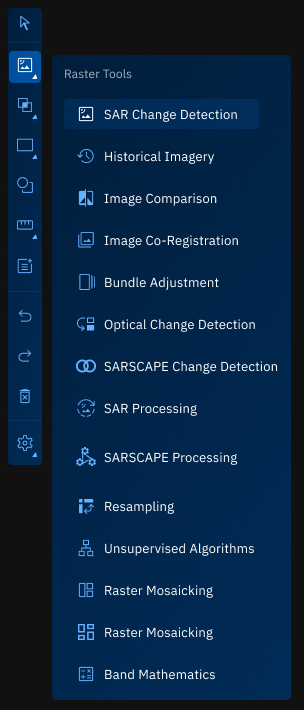
As the name suggests, the Raster Tools consists of tools that enable you to do a number of differents tasks namely:
- SAR Change Detection
- Historical Imagery
- Image Comparison
- Image Co-registration
- Bundle Adjustment
- Optical Change Detection
- Raster Mosiacking
- Band Mathematics
SAR Change Detection Tool
With the SAR Change Detection tool, you can compare two SAR images taken at different times to detect and analyze changes.
You can use this tool to monitor activity and assess change over time using radar-based imagery—regardless of weather or daylight conditions. Some of the typical changes you can detect include shifts in vegetation, urban development, flood damage, and so on.
Prerequisites
Before using the SAR Change Detection tool, ensure the following:
For Amplitude Change Detection:
- Must select a SAR Layer
- Same satellite name
- The recommended product level to use is GRD (Ground Range Detected). GRD products provide detected (magnitude-only) images in ground-range coordinates, making them suitable for analyzing changes in amplitude.
- Same orbit direction
- Same look side
- Must overlap by 90%
For SLC Coherence Change Direction:
- Must select a SAR Layer
- Same satellite name
- The recommended product level to use is SLC (Single Look Complex). SLC products preserve the raw complex signal (amplitude and phase) in slant-range geometry, which is more suitable for interferometry-based change detection
- Same orbit direction
- Same look side
- Incidence angle should me similar
- Should overlap by 90%
Use Cases
| Use Case | Description |
|---|---|
| Urban change detection | Monitoring infrastructure expansion or development between two time periods. |
| Flood or disaster analysis | Identify areas affected by flooding, landslides, or other surface disruptions. |
| Vegetation tracking | Detect seasonal or human-driven changes in vegetation cover. |
| Conflict zone monitoring | Observe structural or terrain shifts in areas of interest. |
| Coherence analysis | Evaluate structural stability or surface changes using SLC Coherence. |
Configuring Parameters and Execute Job
To use the SAR Change Detection tool, do the following:
-
Go to the Analyst Tools panel, and click the SAR Change Detection tool.

The SAR Change Detection dialog box is displayed.
-
On the dialog box, configure the following options:
| Field | Description |
|---|---|
| Select Workflow | Choose the change detection method:
|
| Target Layer | Select the later-date SAR image. This is the layer where changes are expected. |
| Reference Layer | Select the earlier-date SAR image to compare against. |
| Advanced Parameters | Select one of the following options. |
| Digital Elevation Model (DEM) | Choose the elevation model for terrain correction:
|
| Polarization | Select matching polarization for both images:
|
| Geometric Correction | Choose how spatial distortion is corrected:
|
| N Looks | Type or select a number (e.g., 1–5) to adjust speckle filtering. 💡 Higher values (e.g., 3–5) reduce noise; lower values retain detail. |
| Mask UAE Sea | Choose whether to exclude sea/water bodies:
|
-
Click the Apply button to run the SAR change detection.

The system processes both layers and generates a change map.
Monitoring Processing Pipeline
-
Click the Data module, select the Analytics sub-module, and then view the job progress in the In-Progress/Completed tab.


Once the job is successfully processed, it will be displayed in the Workspace.
NOTE: Click the Eye icon to view details of the job.
Viewing and Validate the Results
-
In the Workspace, select the output layer, click the vertical three-dots menu, and then click Zoom into Layer to review and interpret the changes.

Historical Imagery
Use this tool to load and explore all available historical raster images for the area you're currently viewing on the map. Zoom into any region of interest, and the system will display a time-sequenced stack of imagery—from the oldest to the most recent. This enables you to visually track changes over time and analyze how the landscape or features have evolved based on available data.
Playing Historical Imagery
-
On the Analyst Tools, click the Historical Imagery icon to get started with using the tool.
The Historical Imagery dialog box is displayed.
-
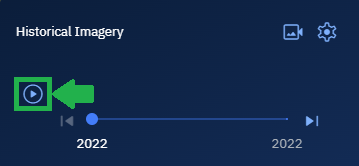
In the Historical Imagery dialog box, click the Play button to view all available historical raster images for the area you're currently viewing on the map.
Editing the Play Settings
This settings enables you to display acquisition time and layer name while having better control of the historical imagery play.
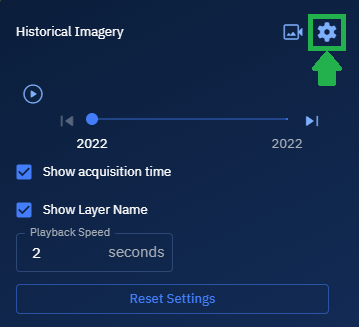
- In the Historical Imagery dialog box, click the Settings icon and do the following:
- Select the Show Acquisition Time check-box to display imagery acquisition time on the play timeline.
- Select the Show Layer Name check-box to display the layer name on the play timeline.
- Type a number in the Playback Speed field to increase or decrease the playback speed in seconds.
Export the Image
This setting enables you to download image in PNG or JPEG format. You can also add acquisition date and time on the downloaded image. You can also design the text styling, background styling, and placement of the date and time label on the image.
-
In the Historical Imagery dialog box, click the Export icon.
-
Select PNG or JPEG as the image format that you want to download.
-
Select the Add acquisition date-time on image check-box, and then proceed to set up the text styling, background styling, and placement of the date and time label on the image.
-
Click the Download button to download the image to your local computer.

Image Comparison Tool
With the Image Comparison tool, you can visually compare two raster images side-by-side to identify spatial differences, detect visual changes, or confirm image alignment.
You can use this tool to quickly assess how a location has evolved between two points in time, compare different sensor outputs, or validate preprocessing accuracy. This tool is especially helpful when reviewing results from change detection or image correction workflows.
Prerequisites
Before using the Image Comparison tool, ensure the following:
- Two raster image layers are available in the Layers panel.
- Both images are georeferenced and aligned spatially for meaningful visual comparison.
- The images are in compatible formats and use a visible spectral band or RGB composite.
Use Cases
| Use Case | Description |
|---|---|
| Change monitoring | Visually assess surface changes between two dates using side-by-side or swipe comparison. |
| Pre- and post-disaster review | Compare damage extent by switching between before-and-after imagery. |
| Sensor validation | Compare imagery from different satellites or sensors for consistency or calibration. |
| Workflow result validation | Confirm output of tools such as co-registration or change detection by visual inspection. |
| Feature tracking | Follow the growth, removal, or movement of land cover or man-made structures. |
Configuring Parameters and Execute Job
To use the Image Comparison tool, do the following:
-
Go to the Analyst Tools panel, click the Image Comparison tool.
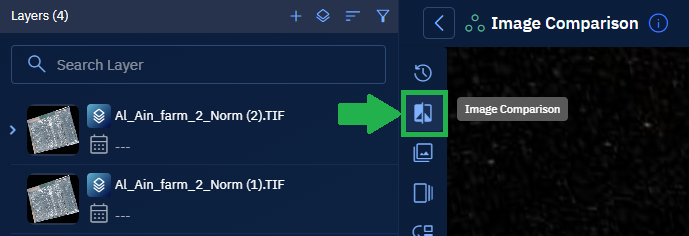
The Image Comparison dialog box is displayed.
-
On the Image Comparison dialog box:
-
Select the First Image layer.
-
Select the Second Image layer to compare it with.
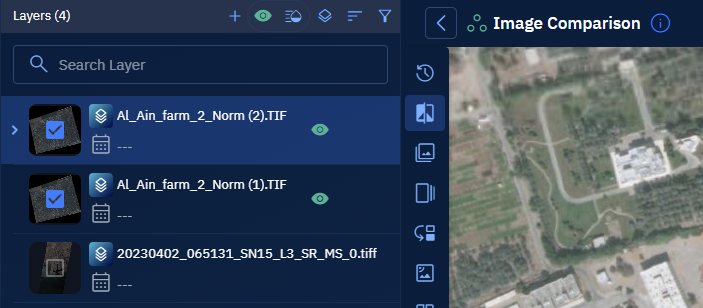
A comparison slider is displayed on the screen.
-
Viewing and Validate the Results
-
Use the comparison slider to view and compare the two images.
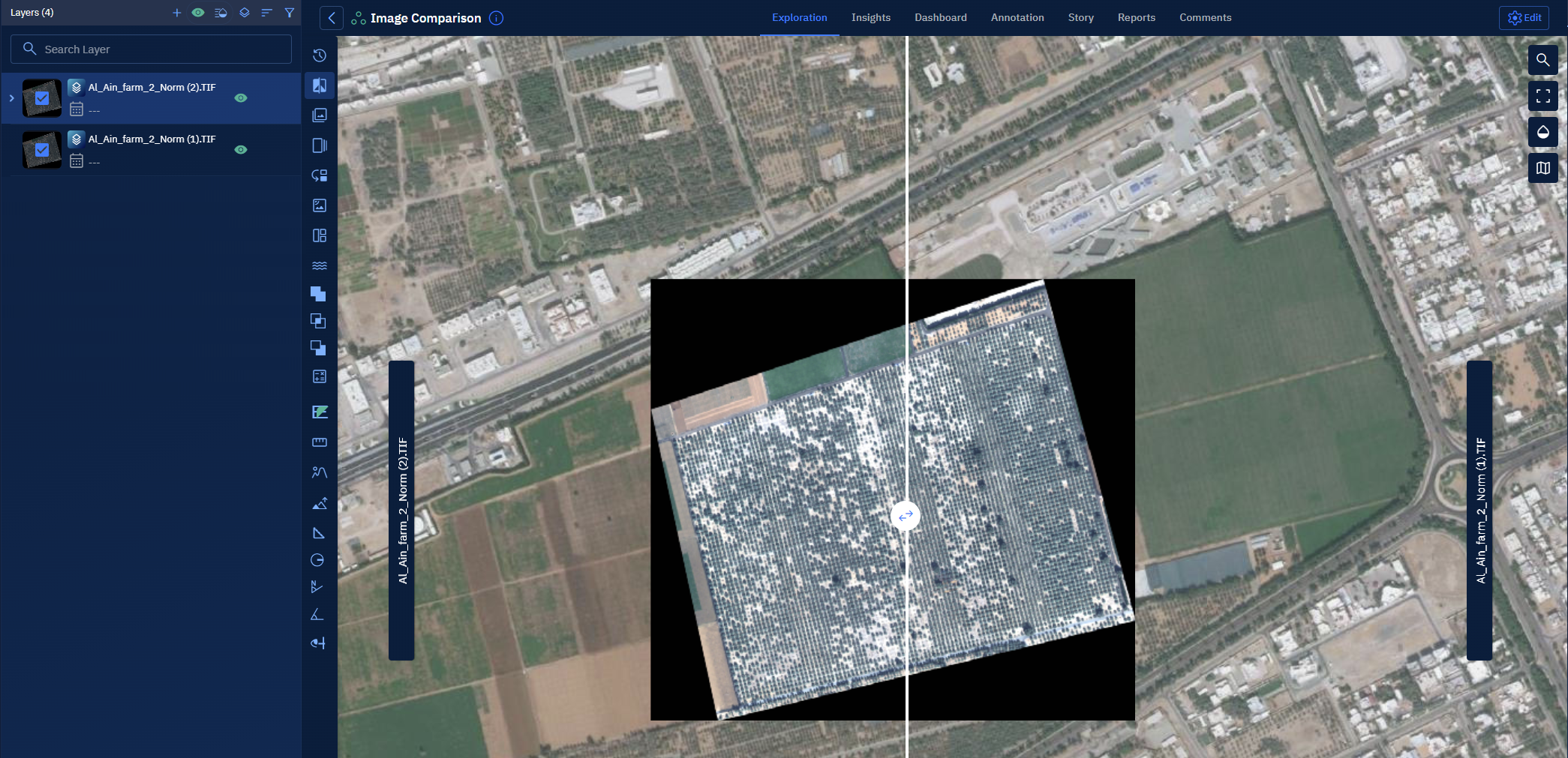
Image Co-Registration Tool
With the Image Co-Registration tool, you can align multiple raster images—captured from different times, sensors, or angles—so that they share the same spatial coordinate system. You can use this tool to ensure accurate pixel-to-pixel correspondence, enabling meaningful comparison, analysis, or fusion of imagery. This is especially useful when working with multi-temporal satellite data or integrating imagery from different sources.
Prerequisites
Before using the Image Co-Registration tool, ensure the following:
- At least two raster image layers are available in the Layers panel.
- Input images must have visible or identifiable features to match between them.
- All images must be in a known projection and contain georeferencing metadata.
Use Cases
| Use Case | Description |
|---|---|
| Multi-temporal analysis | Align images from different dates to assess environmental or infrastructure change. |
| Sensor fusion | Overlay images from different satellites or cameras for comparative or blended analysis. |
| Preprocessing for change detection | Align imagery before applying optical or SAR change detection tools. |
| Image enhancement | Co-register higher-resolution and lower-resolution images for sharpening or detail preservation. |
| Accuracy improvement | Improve geolocation accuracy by correcting misalignments caused by acquisition differences. |
Configuring Parameters and Execute Job
To use the Image Co-Registration tool, do the following:
-
Go to the Analyst Tools panel, click the Image Co-Registration tool.
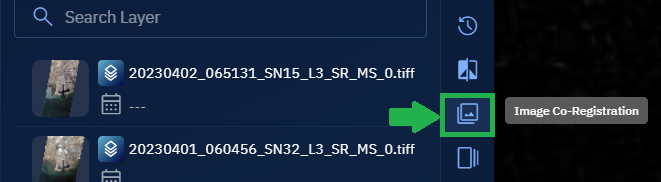
The Image Co-Registration dialog box is displayed.
-
On the Image Co-Registration dialog box:
- Select the Reference Image (the image to align to).
- Select the Target Image (the image that will be shifted or warped to match the reference).
- (Optional) Specify the tie points manually or allow the tool to auto-detect control points.
- (Optional) Adjust transformation method if available (e.g., affine, polynomial, or spline).
-
Click the Apply button to align the target image with the reference image.
A new co-registered image layer is generated and added to the workspace.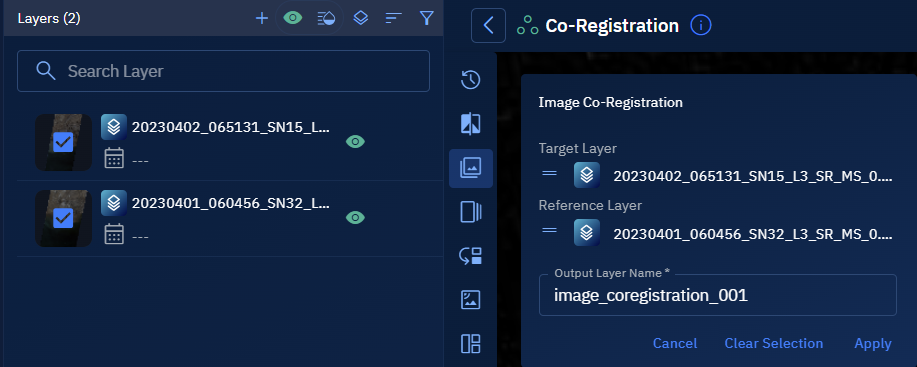
Monitoring Processing Pipeline
-
Click the Data module, select the Analytics sub-module, and then view the job progress in the In-Progress/Completed tab.

Once the job is successfully processed, it will be displayed in the Workspace.
Click the Eye icon to view details of the job.
Viewing and Validate the Results
- In the Workspace, select the output layer, click the vertical three-dots menu, and then click Zoom into Layer to review and interpret the changes.
Bundle Adjustment Tool
With the Bundle Adjustment tool, you can optimize both 3D point positions and camera parameters across multiple overlapping images. You can use this tool to improve the accuracy of photogrammetric reconstructions by minimizing projection errors between observed and calculated image points.
This is especially useful when working with drone imagery, aerial photographs, or multi-angle satellite scenes.
Prerequisites
Before using the Bundle Adjustment tool, ensure the following:
- Input images must be overlapping images with associated camera models or metadata
- Input images must be georeferenced or contain orientation data (e.g., GPS/IMU)
- Input images must be from a single vendor only. In the current release, only Airbus is supported.
- Input images must be multispectral images
Use Cases
| Use Case | Description |
|---|---|
| Aerial mapping correction | Refine the alignment of overlapping drone or aerial images to improve 3D model accuracy. |
| 3D point cloud refinement | Enhance the precision of 3D scene reconstruction from multiple image sources. |
| Orthophoto generation | Prepare images for orthorectification by correcting internal camera distortions. |
| Survey-grade accuracy | Achieve high positional accuracy for applications such as cadastral mapping or engineering surveys. |
Configuring Parameters and Execute Job
To use the Bundle Adjustment tool, do the following:
-
Go to the Analyst Tools panel, click the Bundle Adjustment tool.
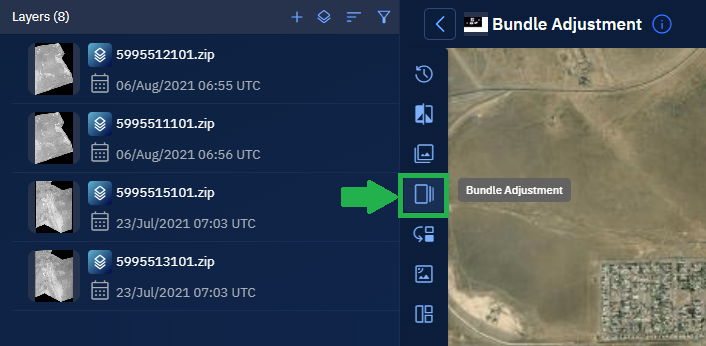
The Bundle Adjustment dialog box is displayed.
-
On the Bundle Adjustment dialog box, do the following:
- Click the Select Vendor drop-down list and select a vendor
- Draw an Area of Interest (AOI) with square tool
- Select a minimum of two overlapping images
-
Click the Apply button to run the bundle adjustment process.
The tool will optimize image orientation and 3D point locations across the dataset.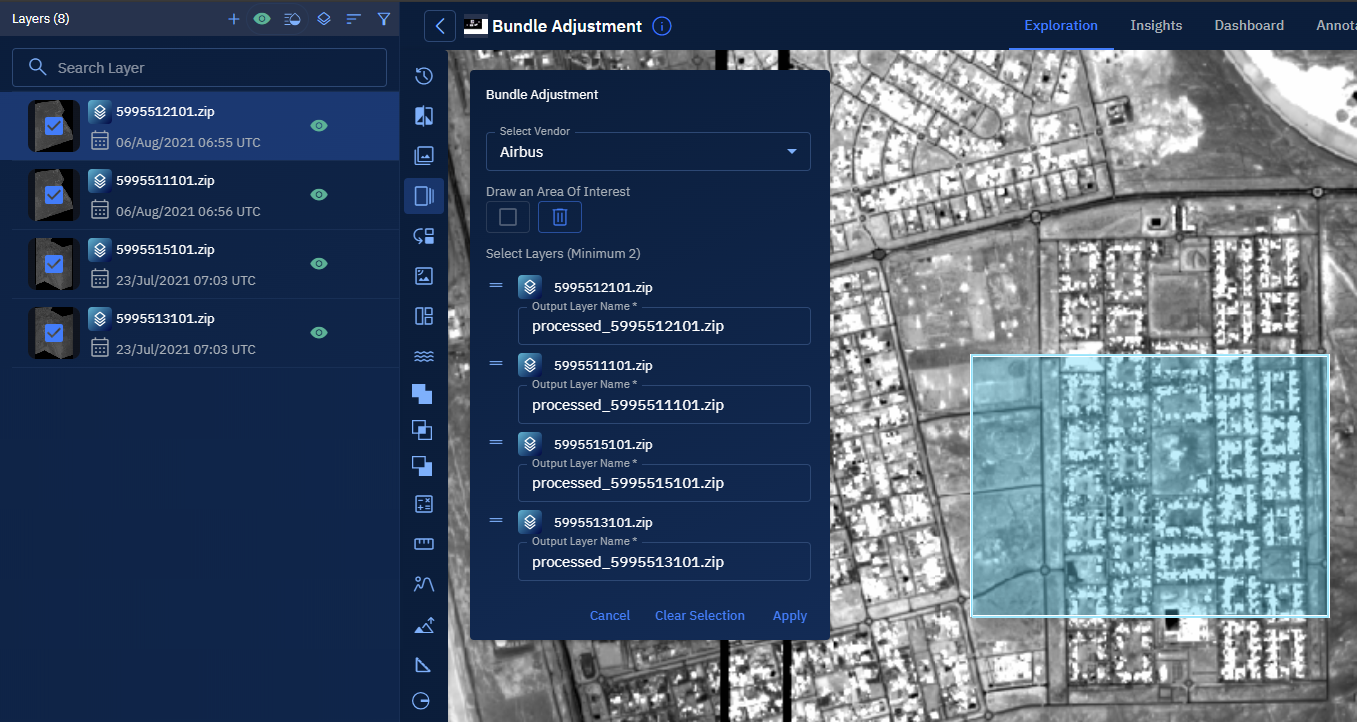
Monitoring Processing Pipeline
-
Click the Data module, select the Analytics sub-module, and then view the job progress in the In-Progress/Completed tab.
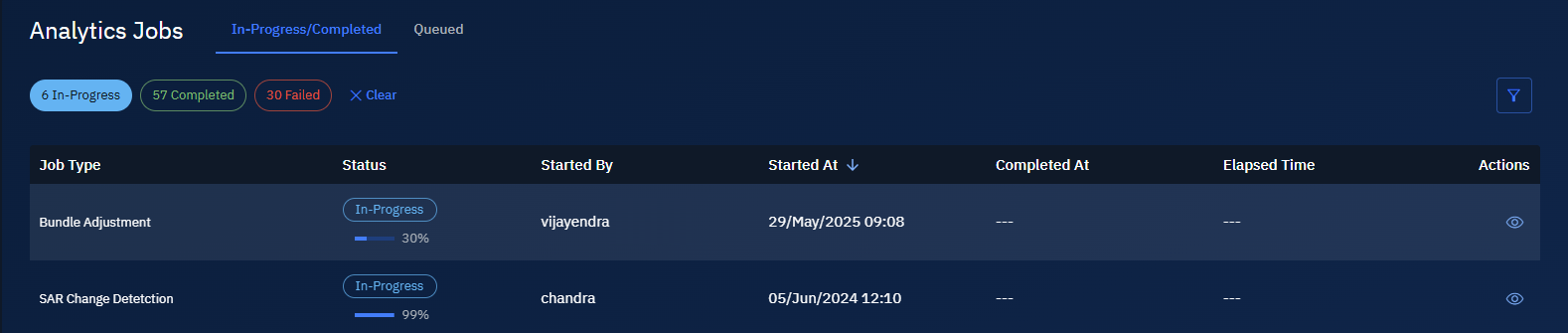
Once the job is successfully processed, it will be displayed in the Workspace.
Click the Eye icon to view details of the job.
Viewing and Validate the Results
-
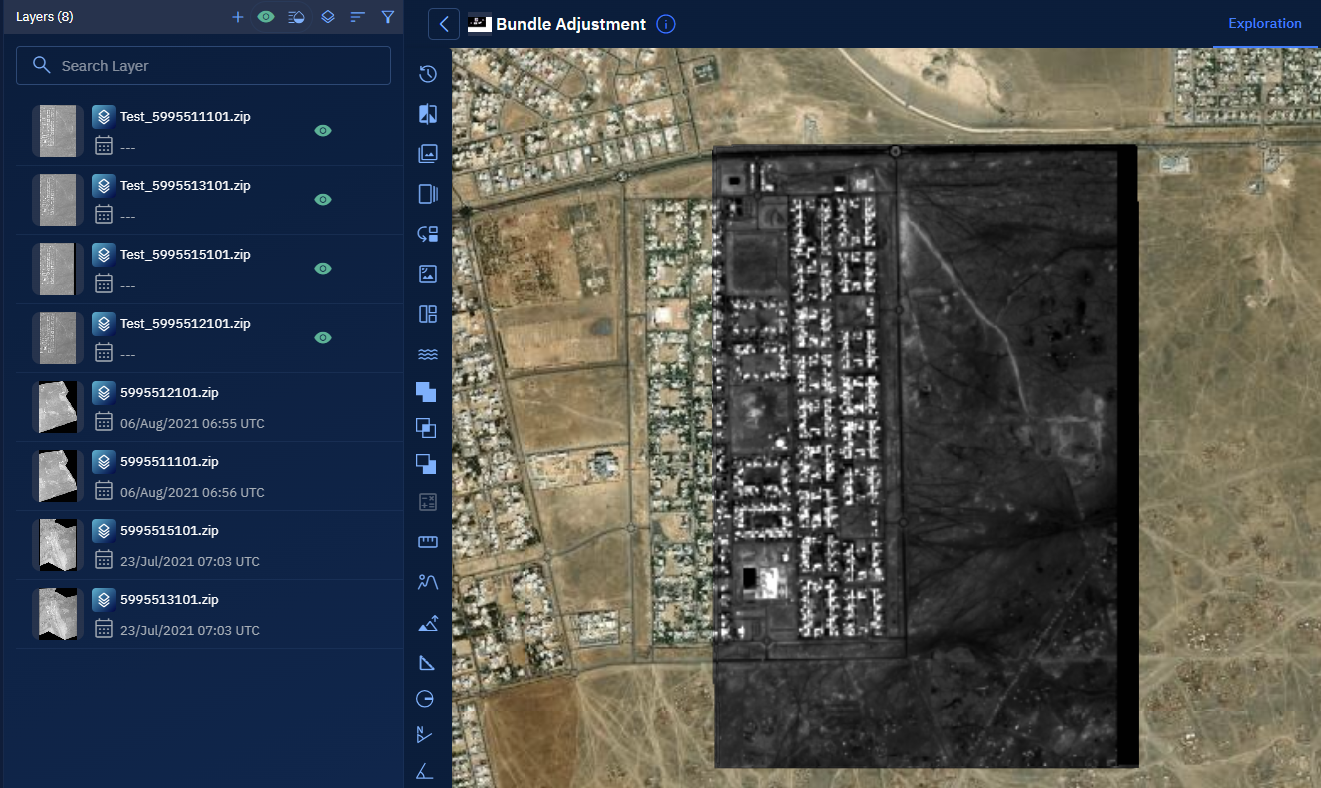
In the Workspace, select the output layer, click the vertical three-dots menu, and then click Zoom into Layer to review and interpret the changes.
Optical Change Detection Tool
With the Optical Change Detection tool, you can analyze optical imagery taken at two different time points to identify changes on the Earth’s surface. By comparing images from visible and near-infrared bands, you can detect variations in land use, vegetation, infrastructure, or natural events.
You can use this tool to uncover surface-level changes using data from satellites or aerial sensors equipped with optical cameras.
Prerequisites
Before using the Optical Change Detection tool, ensure the following:
- Two optical image layers, captured at different time points, are available in the Layers panel.
- Input layers must be georeferenced and aligned spatially.
- Both images must be from the same sensor type or have consistent spectral bands.
Use Cases
| Use Case | Description |
|---|---|
| Urban expansion monitoring | Detect construction, road development, or city boundary growth. |
| Vegetation and crop tracking | Identify deforestation, seasonal crop cycles, or degradation. |
| Disaster assessment | Analyze damage caused by fires, floods, or earthquakes over time. |
| Environmental monitoring | Track wetland shrinkage, coastal erosion, or habitat changes. |
| Land use classification | Compare classification results from different dates to map transition zones. |
Configuring Parameters and Execute Job
To use the Optical Change Detection tool, do the following:
-
Go to the Analyst Tools panel, click the Optical Change Detection tool.
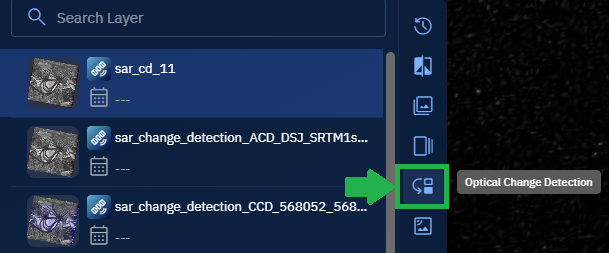
The Optical Change Detection dialog box is displayed.
-
On the Optical Change Detection dialog box:
- Select the Target Image (newer image or more recent acquisition).
- Select the Reference Image (older image or baseline comparison).
- Draw an Area of Interest (AOI) using a rectangle or polygon, or select from the AOI Library, or paste the WKT coordinates.
-
Click the Apply button to generate a change detection output based on spectral comparison of both images.
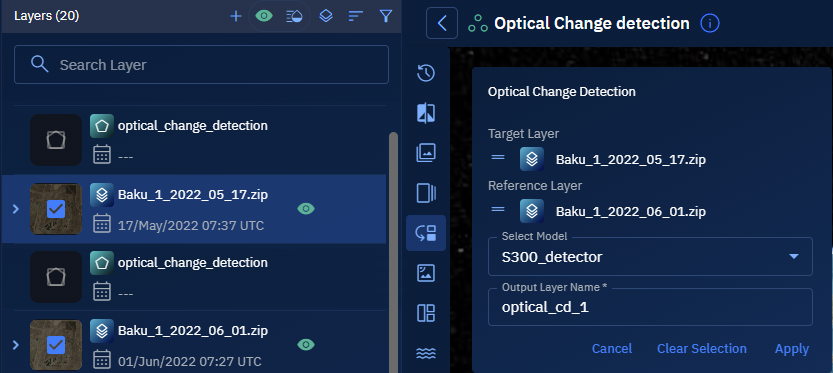
Monitoring Processing Pipeline
-
Click the Data module, select the Analytics sub-module, and then view the job progress in the In-Progress/Completed tab.

Once the job is successfully processed, it will be displayed in the Workspace.
Click the Eye icon to view details of the job.
Viewing and Validate the Results
-
In the Workspace, select the output layer, click the vertical three-dots menu, and then click Zoom into Layer to review and interpret the changes.

Raster Mosaicking Tool
The Raster Mosaicking tool allows you to combine multiple raster datasets—typically adjacent or overlapping tiles—into a single, continuous raster image. The input rasters may include satellite imagery, aerial photographs, elevation data, or other grid-based datasets. This process aligns, blends, and harmonizes the pixel values at the seams to create a seamless visual or analytical layer across a larger area.
Prerequisites
Before using the Raster Mosaicking tool, ensure the following:
- Only layers with 3 bands (RGB) are supported in the current release. The current release does not support mosaicking layers with band mismatches.
- Only .tif image format is supported in the current release
- A minimum of two and a maximum of four images can be combined together
- Input layers must have the same number of spectral bands. The current release does not support mosaicking layers with band mismatches.
- Spatial resolution difference between input layers must be within 20 percent to maintain quality and alignment.
Use Cases
| Use Case | Description |
|---|---|
| Merging image tiles | Combines adjacent satellite or aerial image tiles into a single, continuous regional view. |
| Composite raster generation | Creates unified elevation, NDVI, or other thematic rasters by merging multiple segments. |
| Preprocessing for analysis | Prepares consistent raster layers for downstream tasks such as classification or modeling. |
| Seam removal | Eliminates visible seams or gaps between overlapping or neighboring raster tiles. |
Configuring raster mosaicking parameters
-
Go to the Analyst Tools panel, click the Raster Mosaicking tool.
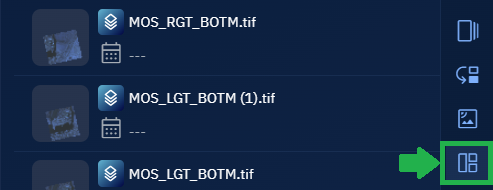
The Raster Mosaicking dialog box is displayed.
-
Select Layer 1 and Layer 2 from the Layers panel and view the selections on the Raster Mosaicking dialog box.
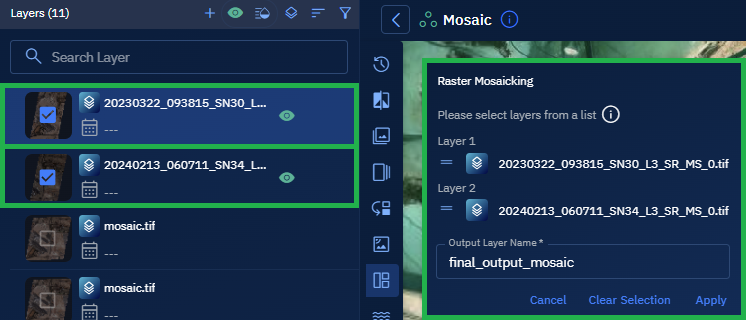
-
Type a name for the output file in the Output Layer Name field. For example, final_output_mosaic
-
Click Apply to start the raster mosaicking process.
A confirmation message will be displayed on the screen.
System Executes and Publishes the Mosaicked Output
After you click the Apply button, the mosaicking job is submitted to the platform’s backend for automated processing.
- The job is routed to the Analytics sub-module, where it is queued and executed. Only roles with appropriate permissions can access the Analytics sub-module.
- Once processing is complete, the output is passed to the inference engine, which validates and finalizes the result.
- Upon successful validation, the final mosaicked image is automatically published to the Layers section in your Workspace.
This system-driven step includes:
- Georeferencing alignment
- Operator-based pixel processing
- Quality assurance and metadata checks
This entire step is fully automated. No user input or monitoring is required. For more details, see the Data > Jobs > Analytics sub-module chapter.
Viewing and Confirm the Mosaicked Output
- Go to the Layers section in your workspace, locate the newly generated mosaicked image, and click the layer name to view it on the map.
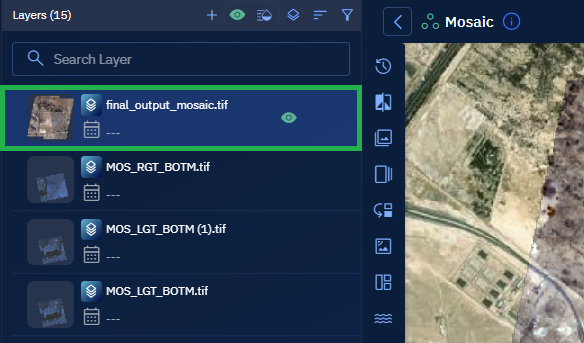
Visually inspect the layer to confirm that:
- The tile boundaries have been blended correctly.
- Color maps appear as expected (if applied).
- No visible seams or alignment issues remain.
Optional:
If you want to download a local copy of the output:
- Select the mosaicked image in the Layers panel. The Contextual Panel slides out.
- Go to the Properties tab in the contextual image panel.
- Click the Download icon (down arrow) to save the file to your computer.
Band Mathematics Tool
Use the Band Mathematics tool to derive new raster outputs by applying mathematical expressions to individual bands in a multi-band raster layer. You can create custom indices (like NDVI), enhance spectral features, or isolate phenomena by performing pixel-wise operations across bands.
Prerequisites
Before using the Band Mathematics tool, ensure the following:
- The raster layer includes clearly defined band metadata.
- You must know the band names or indexes to reference in the expression (e.g.,
B4,B8). - You must be familiar with basic arithmetic operations and their application to raster data.
Use Cases
| Use Case | Description |
|---|---|
| Deriving vegetation indices | Calculate NDVI or similar metrics to assess vegetation health or cover density. |
| Creating custom raster layers | Combine specific bands to highlight moisture, heat, or urban change patterns. |
| Enhancing visual contrast or spectral features | Use formulas to emphasize land, water, or built-up areas. |
| Masking or filtering data conditionally | Apply logical conditions to exclude unwanted pixels or highlight anomalies. |
Band Mathematics Interface
| No. | Field | Description | Examples |
|---|---|---|---|
| 1 | Layer Bands | Represents individual bands from a multi-band raster dataset. Each band captures different spectral information such as Red, Green, Blue, or NIR. | B1 for Blue, B4 for Red, B8 for NIR |
| 2 | Operators | A set of mathematical and logical expressions used to create raster formulas. Includes arithmetic, comparison, and trigonometric functions. See the Examples of Operators chapter for more information. | +, -, /, *, log(), sqrt(), sin(), ==, > |
| 3 | Preset Expressions | Built-in expressions provided for common raster calculations. When selected, these auto-fill the expression field with a formula that the user can modify. See the Descriptions of Preset Expressions chapter for more information. | NDVI = (B8 - B4) / (B8 + B4)SAVI = ((B8 - B4) / (B8 + B4 + L)) * (1 + L) |
| 4 | Expression | The custom mathematical formula you define using available bands and operators. This is the core input that drives the band math calculation. | (B8 - B4) / (B8 + B4)sqrt(B11) * log(B4 + 1) |
| 5 | Output Layer Name | The name for the output raster layer that will be generated after executing the band math expression. | NDVI_March2024Vegetation_Index_Output |
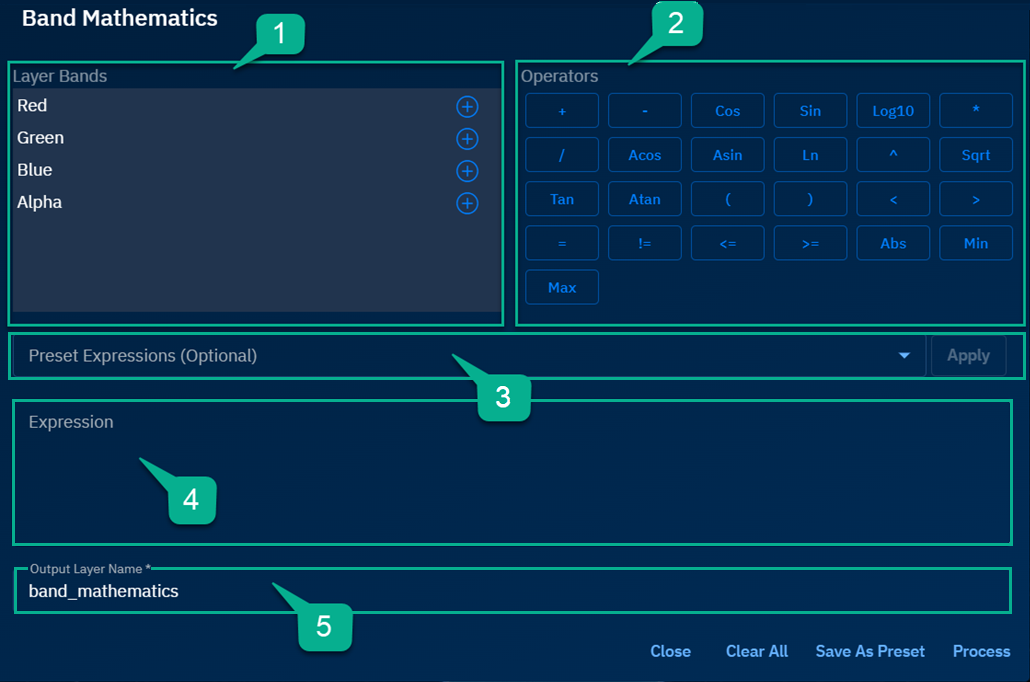
Examples of Operators
This section presents mathematical and logical expressions examples for arithmetic, comparison, and trigonometric functions.
| Operator Type | Operator / Function | Description | Example |
| ------------------- | ------------------------------- | --------------------------------------------------------- | ------------------------------------------------------- | ----- | --------- |
| Arithmetic | + (Addition) | Adds values from two rasters | raster1 + raster2 adds values pixel-wise |
| | - (Subtraction) | Subtracts a constant or raster from another raster | raster1 - 5 subtracts 5 from every pixel in raster1 |
| | * (Multiplication) | Multiplies each pixel value by a constant or raster | raster * 2 multiplies every value in raster by 2 |
| | / (Division) | Divides the values of one raster by another | raster1 / raster2 divides raster1 values by raster2 |
| Comparison | = (Equal to) | Checks if values in two rasters are equal | raster1 = raster2 returns True where values match |
| | != (Not equal to) | Checks if values are not equal | raster1 != raster2 returns True where values differ |
| | < (Less than) | Checks if raster values are less than a threshold | raster1 < 10 returns True for pixels < 10 |
| | <= (Less than or equal to) | Checks if raster values are less than or equal to another | raster1 <= raster2 returns True where condition holds |
| | > (Greater than) | Checks if raster values are greater than a threshold | raster1 > 5 returns True for pixels > 5 |
| | >= (Greater than or equal to) | Checks if raster values are ≥ a threshold | raster1 >= 0 returns True where values ≥ 0 |
| Mathematical | sqrt(x) | Returns the square root of each raster value | sqrt(raster1) returns sqrt of each pixel |
| | log(x) | Returns the natural logarithm of each raster value | log(raster1) returns ln of each pixel |
| | ln(x) | Computes the natural logarithm (base e) of x | ln(raster1) returns ln of each pixel |
| | abs(x) | Returns the absolute value of each raster value | abs(raster1) returns | value | per pixel |
| Trigonometric | sin(x) | Returns the sine of an angle (in radians) | sin(raster1) returns sine of pixel values |
| | cos(x) | Returns the cosine of an angle (in radians) | cos(raster1) returns cosine of pixel values |
| | tan(x) | Returns the tangent of an angle (in radians) | tan(raster1) returns tangent of pixel values |
| | Asin(x) | Returns the arcsine of x (in radians) | Asin(raster1) returns arcsine of values |
| | Acos(x) | Returns the arccosine of x (in radians) | Acos(raster1) returns arccosine of values |
| | Atan(x) | Returns the arctangent of x (in radians) | Atan(raster1) returns arctangent of values |
| Other Functions | ^ (Exponentiation) | Raises a value to a power | raster1 ^ 2 squares each pixel |
| | ( (Left parenthesis) | Groups expressions and controls order of operations | sqrt((raster1 + raster2) * 2) |
| | ) (Right parenthesis) | Closes grouped expressions for order control | log((raster1 + 1)) |
Descriptions of Preset Expressions
| Preset Expression Name | Formula | Purpose | How to Use |
|---|---|---|---|
| Brightness Index | sqrt(("[R]"^2+"[G]"^2+"[B]"^2)/3) | Measures surface brightness in arid regions | Use in areas with exposed soil to estimate surface brightness. |
| Soil Color Index | ("[R]"-"[G]")/("[R]"+"[G]") | Highlights bare soil characteristics | Apply on bare soil zones to distinguish different soil colors. |
| Green Leaf Index | (2*"[G]"-"[R]"-"[B]")/(2*"[G]"+"[R]"+"[B]") | Emphasizes green vegetation, suppresses soil | Best used to enhance visualization of healthy green vegetation. |
| Primary Colors Hue Index | (2*"[R]"-"[G]"-"[B]")/("[G]"-"[B]") | Estimates hue from primary colors | Apply to RGB composites for color hue classification. |
| Normalized Green Red Difference Index | ("[G]"-"[R]")/("[G]"+"[R]") | Vegetation index alternative to NDVI | Use when NIR is unavailable, especially in basic RGB imagery. |
| Spectral Slope Saturation Index | ("[R]"-"[B]")/("[R]"+"[B]") | Measures spectral slope and vegetation types | Apply to distinguish vegetation from water or other surfaces. |
| Visible Atmospherically Resistant Index | ("[G]"-"[R]")/("[G]"+"[R]"-"[B]") | Vegetation detection using visible bands | Best for visible-spectrum-only vegetation analysis. |
| Overall Hue Index | atan(2*("[B]"-"[G]"-"[R]")/30.5*("[G]"-"[R]")) | Abstract hue metric | Use for analyzing hue variations in RGB imagery. |
| Blue Green Pigment Index | "[B]"/"[G]" | Differentiates water and green pigments | Apply in water and plant separation tasks. |
| Plant Senescence Reflectance Index | ("[R]"-"[G]")/("[RE]") | Detects plant senescence and pigment loss | Use to detect aging or dying vegetation during crop monitoring. |
| Normalized Difference Vegetation Index | ("[NIR]"-"[R]")/("[NIR]"+"[R]") | Measures green vegetation health | Standard vegetation health monitoring index. |
| Green NDVI (GNDVI) | ("[NIR]"-"[G]")/("[NIR]"+"[G]") | Sensitive to chlorophyll content | Use for precision chlorophyll mapping in agricultural fields. |
| Ratio Vegetation Index | "[NIR]"/"[R]" | Simple vegetation health ratio | Apply for quick assessment of vegetation density. |
| Normalized Difference Red Edge Index | ("[NIR]"-"[RE]")/("[NIR]"+"[RE]") | Detects mature vegetation chlorophyll | Use in crops to detect stress earlier than NDVI. |
| Triangular Vegetation Index | 0.5*(120*("[NIR]"-"[G]")-200*("[R]"-"[G]")) | Detects green biomass and canopy structure | Apply in dense vegetation areas to detect canopy structure. |
| Chlorophyll Vegetation Index | ("[NIR]"*"[R]")/("[G]"^2) | Highlights chlorophyll abundance | Use to map chlorophyll concentration across regions. |
| Enhanced Vegetation Index (EVI) | 2.5*("[NIR]"-"[R]")/("[NIR]"+6*"[R]"-7.5*"[B]"+1) | Improves sensitivity in high biomass and reduces haze | Apply where atmospheric correction is critical in high biomass. |
| Chlorophyll Index - Green | ("[NIR]"/"[G]")-1 | Estimates leaf chlorophyll using green band | Best for green vegetation detection using simpler sensors. |
| Chlorophyll Index - Red Edge | ("[NIR]"/"[RE]")-1 | Detects subtle chlorophyll changes | Apply for detailed crop health assessment. |
| Difference Vegetation Index | "[NIR]"-"[RE]" | Basic vegetation index for health and stress analysis | Use for direct NIR-red difference vegetation evaluation. |
Starting a Band Mathematics Job
In this section, you will learn how to use the Band Mathematics tool.
You can use band mathematics in two ways:
- Use the preset expressions
- Create and use you own custom expressions
Using Preset Expressions
The system provides predefined expressions for common raster calculations. To use a preset, select it from the list, assign the required bands, and the expression is applied automatically.
To use the present expressions, do the following:
-
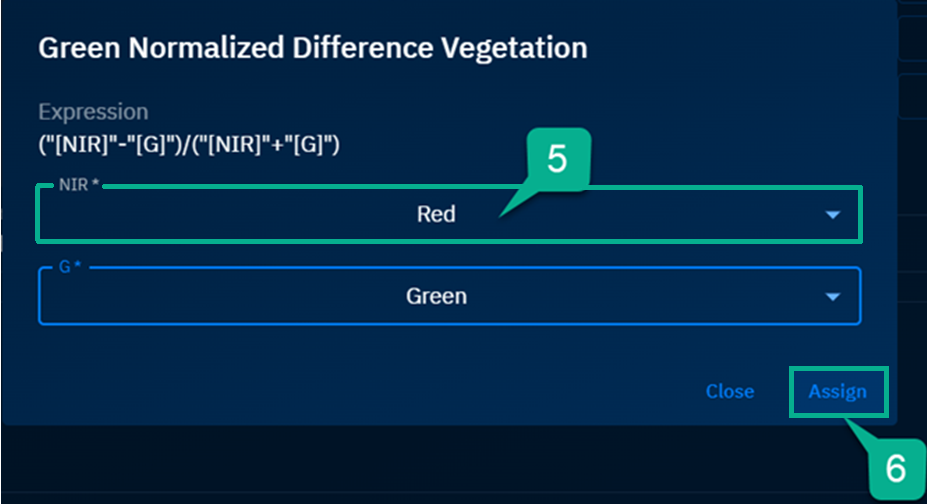
Click the Preset Expressions drop-down list, select a preset expression. For example, Green Normalized Difference Vegetation.
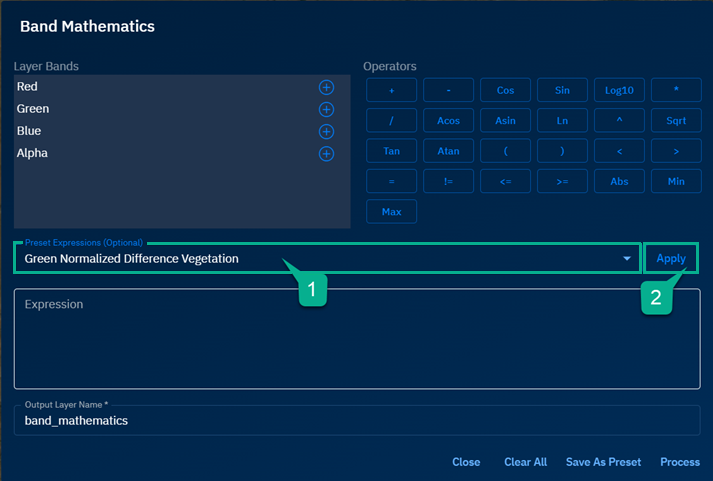
-
Click the Apply button to assign bands and generate the expression.
A dialog box for the preset expression is displayed.
-
In the dialog box, view the formula of the expression and the bands needed for the formula.
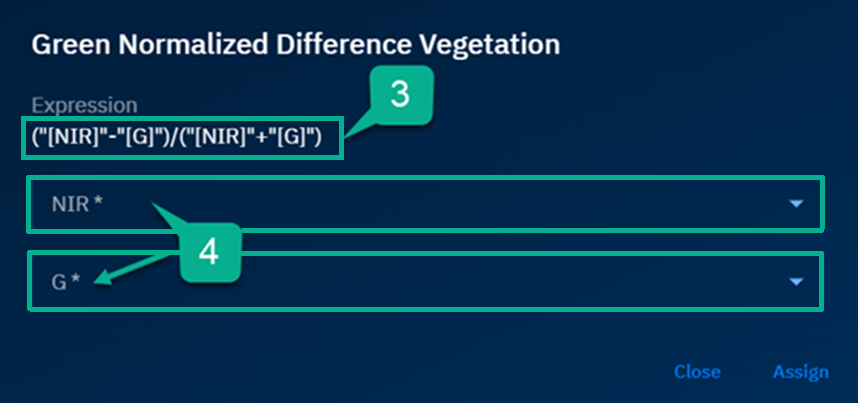
-
Verify the bands needed for the formula.
-
Select the bands needed for the formula and then click the Assign button to generate the expression using the selected bands.
-
Click the Assign button to generate the expression using the selected bands.
Creating custom expressions
Users can create custom expressions using layer bands and supported operators. They can also modify expressions generated from presets and use them for raster calculations.
To create custom expressions, do the following:
-
Open a workspace and then select an image to run band mathematics.
-
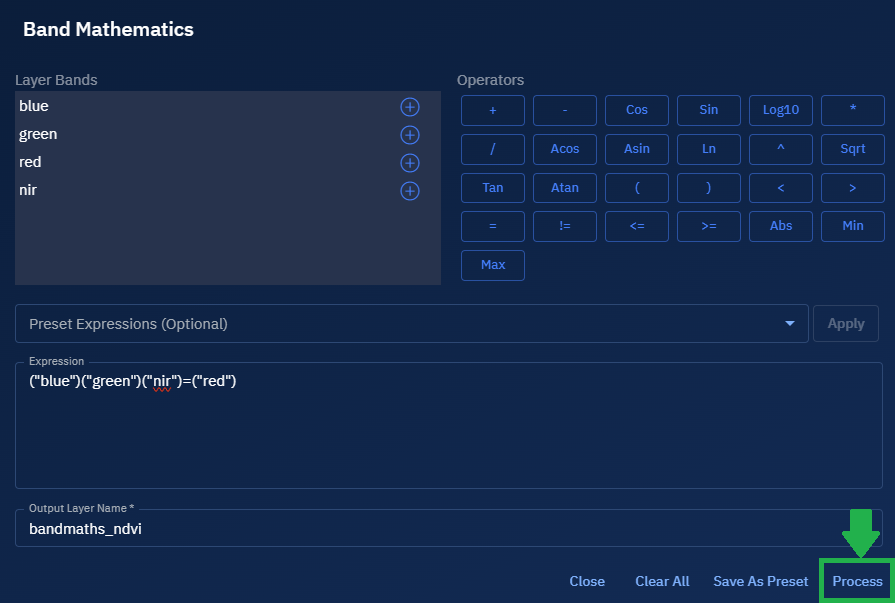
In the Analyst Tools, select the Band Mathematics icon to get started. The Band Mathematics dialog box is displayed.
-
In the Band Mathematics dialog box, click the Expression field to start building your custom expression.
-
In the Output Layer Name, type an appropriate name for the output layer.
-
Click the Process button to start the band mathematics analytical job.
Reviewing the Output
You can review the final output within the workspace.
To review the output, do the following:
-
Navigate to the Layers section in your workspace.
-
Locate the newly generated raster layer by the name you provided.
-
Click the output layer to visualize it on the map.
-
To inspect the result:
- Hover over or click pixels (if supported) to review output values.
- Confirm that the expression was applied correctly and the data represents your intent.
-
Optionally, click the vertical three-dots menu next to the output layer and select Zoom into Layer to focus on the processed region.
You can download the final raster by selecting the layer, opening the Properties tab, and clicking the Download icon.